
Screenshots
App details
- Version
- 5.5.5.0
- Size
- 51.30 MB
- Updated
- April 11, 2011
- Requires
- Windows 7
- Language
- English
- License
- Trial version
- Developer
- Home PC Backup
- Category
- Windows OS
SoftPas in:
This product is also available in the following languages:
About Home PC Backup
Download Home PC Backup – Secure Automatic File Backup for Windows & Mac
Introduction
In today’s digital age, losing precious photos, music collections, or important documents can feel like a personal catastrophe. For home users who are not comfortable navigating complex backup utilities, a simple, trustworthy solution is essential. Home PC Backup positions itself as that friendly guardian, offering an easy, automatic backup experience that requires little more than a few clicks. The service combines a lightweight desktop client with cloud storage managed by the Home PC Backup team, allowing you to protect your files without becoming a tech‑savvy administrator.
The promise is straightforward: sign up, install the client, select the folders you want to protect, and let the software run in the background. When disaster strikes—whether a hard‑drive failure, accidental deletion, or a ransomware attack—the “Restore” button instantly retrieves your data and places it back where it belongs. This review walks through the core features, installation process, system compatibility, and the real‑world pros and cons, giving you a clear picture of whether Home PC Backup is the right fit for your household.
Because many backup tools overwhelm beginners with endless options, Home PC Backup deliberately trims the feature set to what most families actually need. The result is a clean interface, a flexible scheduling engine, and responsive customer support that can be reached by email or telephone. If you’re looking for a no‑frills, secure way to keep your digital memories safe, keep reading to discover how Home PC Backup measures up against the competition.
Overview & Core Features
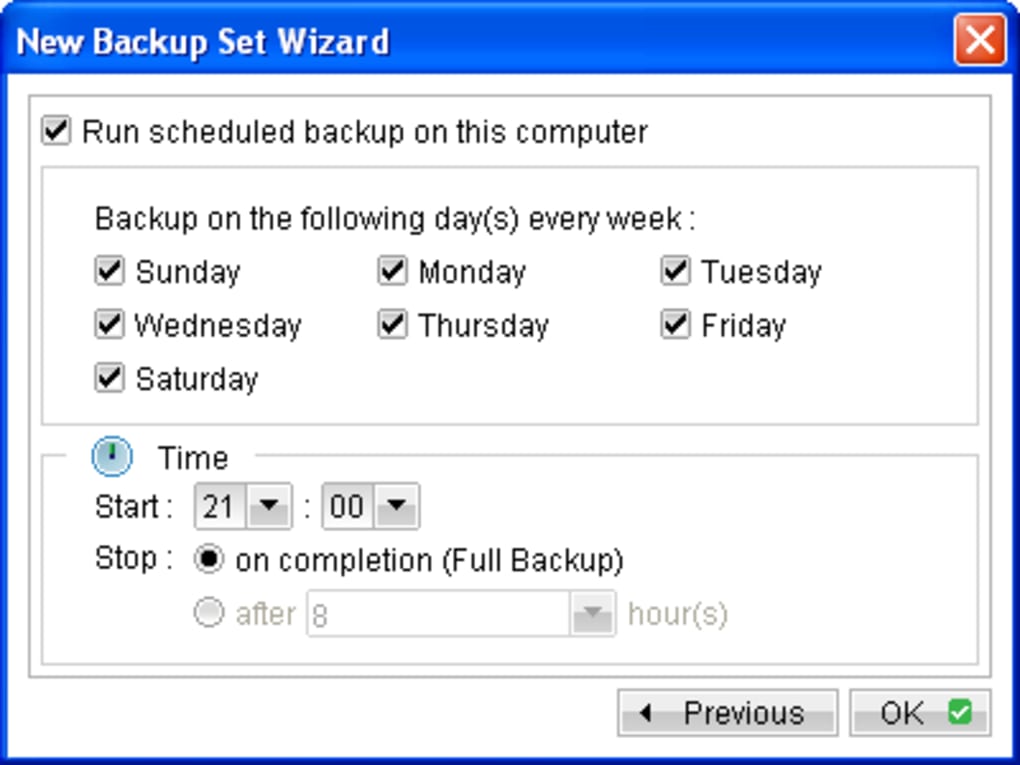
Home PC Backup is a cloud‑based backup service designed specifically for home computer users with limited technical experience. After creating an account on the provider’s website, you download a small desktop client that runs silently on your Windows or macOS machine. The software automatically monitors the folders you designate—typically Documents, Pictures, Music, and Desktop—and backs up new or changed files to the provider’s secure data centre. Backups can be scheduled daily, weekly, or continuously, giving you the flexibility to balance storage usage with the level of protection you desire.
Key Features
- Automatic Scheduling: Choose from daily, weekly, monthly, or continuous backup modes.
- Selective Folder Sync: Only the folders you mark are backed up, keeping storage costs predictable.
- One‑Click Restore: A visible “Restore” button instantly retrieves the latest backup to its original location.
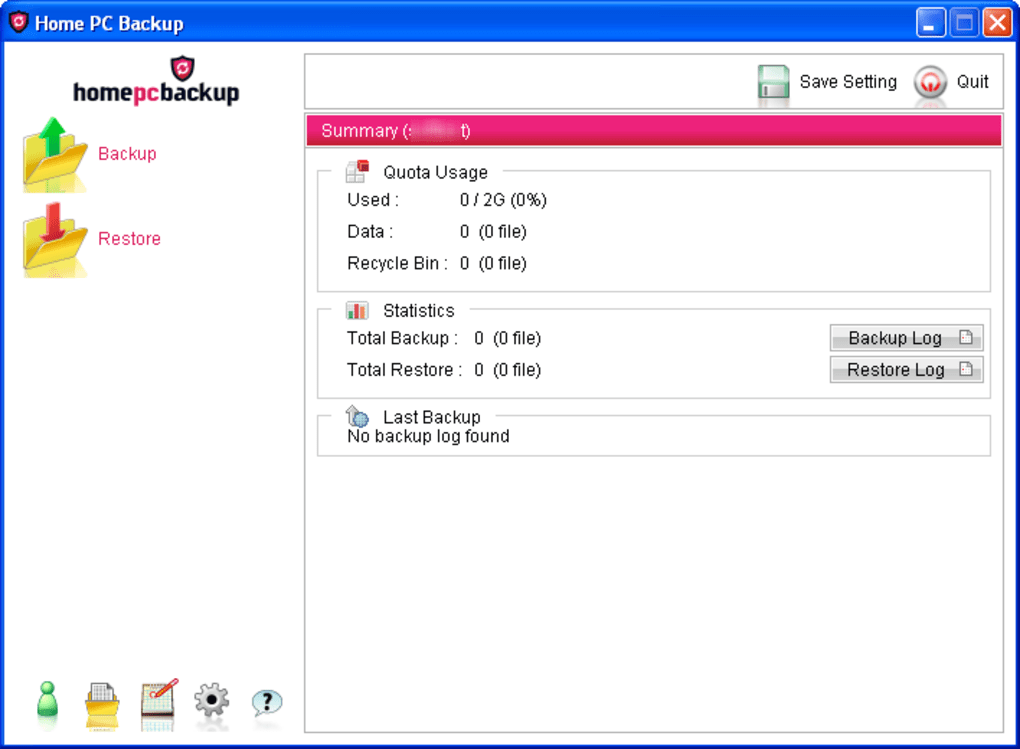
- Activity Log: Detailed logs are generated automatically, allowing you to review what was backed up and when.
- Secure Transmission: All data is encrypted in transit using TLS 1.2 and stored encrypted at rest.
- Cross‑Platform Cloud Access: Access your files from any web browser, making recovery possible even if your PC is completely unusable.
- Responsive Support: Email and telephone support are available for troubleshooting and account questions.
Pros
- Intuitive interface that requires no prior backup knowledge.
- Flexible scheduling options to suit low‑bandwidth connections.
- Secure cloud storage with end‑to‑end encryption.
- Fast, one‑click restoration for non‑technical users.
- Helpful customer support reachable via phone and email.
Cons
- Lacks advanced versioning and granular restore options found in enterprise tools.
- No built‑in documentation; users must rely on support channels for help.
- Limited customization for power users who want detailed backup rules.
- Pricing tiers are not disclosed on the landing page, requiring a sign‑up to view.
- Only Windows and macOS are supported; no native Android or iOS client.
Installation, Setup, Compatibility & Frequently Asked Questions
Getting Home PC Backup up and running is designed to be a frictionless process. Below is a step‑by‑step guide that walks you through account creation, client installation, initial configuration, and verification of a successful backup. The software is compatible with the most common desktop operating systems, ensuring that the majority of home users can benefit from its protection.
Installation Steps
- Create an Account: Visit the Home PC Backup website, click “Sign Up,” and provide a valid email address and payment method. You’ll receive a confirmation email with a link to activate your account.
- Download the Client: After activation, log in to the portal and click the “Download for Windows” or “Download for macOS” button, depending on your system.
- Run the Installer: Double‑click the downloaded installer file. Follow the on‑screen prompts—accept the license agreement, choose the default installation folder, and click “Install.”
- Log In to the Client: Once installation completes, the client launches automatically. Enter the email and password you created during sign‑up.
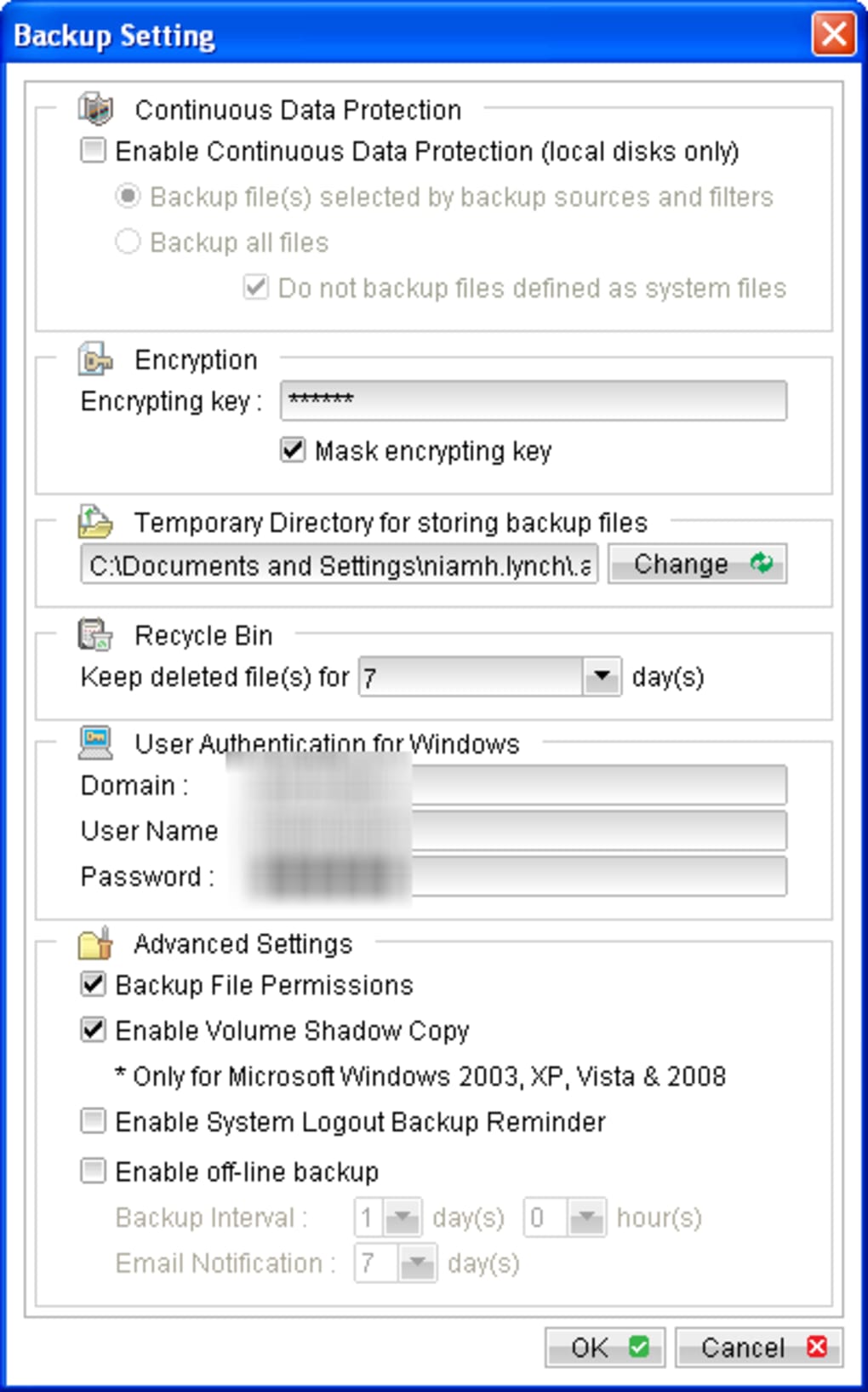
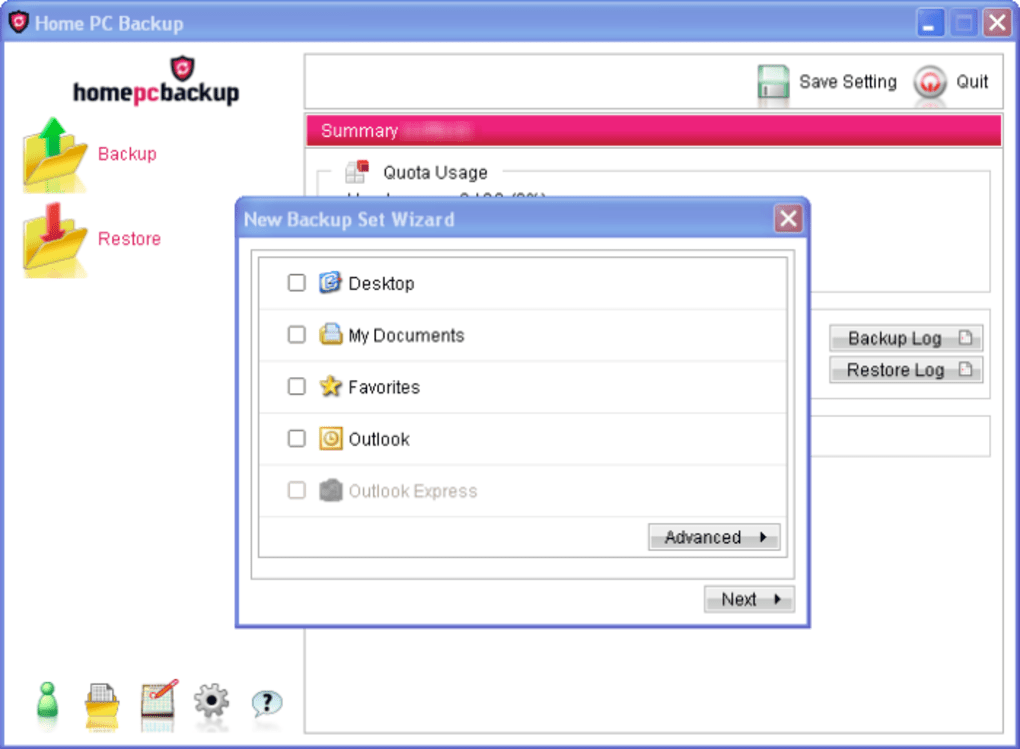
- Select Backup Sources: In the “Backup Settings” window, tick the folders you wish to protect (e.g., Documents, Pictures, Music). You can add custom folders by clicking “Add Folder.”
- Choose a Schedule: Pick a backup frequency—daily at a convenient hour, weekly on a chosen day, or continuous for real‑time protection.
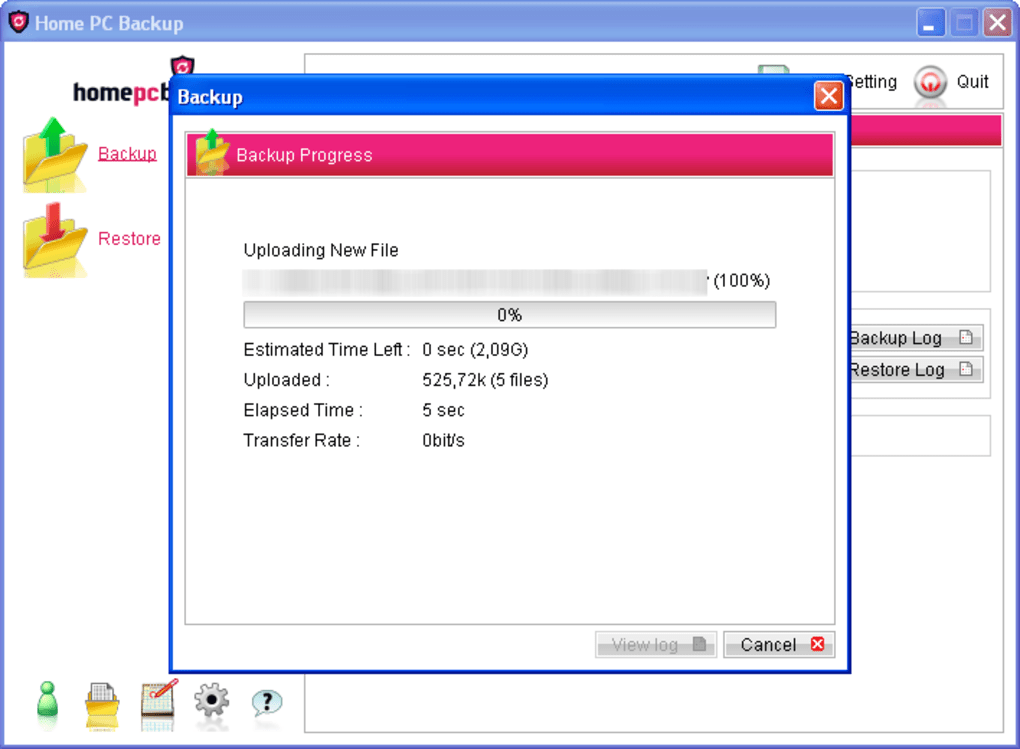
- Start the First Backup: Click “Run Backup Now” to initiate the initial sync. Depending on the amount of data, this may take several minutes to a few hours.
- Verify Completion: After the backup finishes, the client displays a green checkmark and logs the activity. You can also view the backup summary on the web portal.
Compatibility: Home PC Backup supports Windows 7, 8, 10, 11 (both 32‑bit and 64‑bit) and macOS 10.13 (High Sierra) and later. The client does not run on Linux, Chrome OS, Android, or iOS devices, but backed‑up files can be accessed via any modern web browser on those platforms.
Frequently Asked Questions
Can I back up external hard drives or USB sticks?
Yes. After installing the client, you can add any mounted drive as a backup source by clicking “Add Folder” and navigating to the external drive’s root directory. The software will treat it like any other folder, but keep in mind that continuous backup may be limited by the drive’s connection speed.
How secure is my data once it’s uploaded?
All files are encrypted with AES‑256 encryption before they leave your computer, and the transmission uses TLS 1.2. The encrypted files are stored on the provider’s servers, and only you possess the decryption keys needed for restoration.
What happens if I exceed my storage quota?
When you approach your plan’s limit, the client will pause further backups and display a warning in the UI. You can either upgrade to a larger plan via the web portal or manually delete older backups to free space.
Can I restore files to a different computer?
Absolutely. Log in to the Home PC Backup web portal on any computer, select the files you need, and download them directly. If you install the client on a new machine, you can also use the “Restore” button to pull the latest backup onto that device.
Is there a free trial or a money‑back guarantee?
Home PC Backup offers a 14‑day free trial that gives you full access to all features. If you decide the service isn’t right for you, you can cancel within the trial period for a full refund. After the trial, the service moves to a paid subscription model.
Conclusion – Should You Download Home PC Backup?
Home PC Backup delivers exactly what its name promises: a simple, secure, and automatic backup solution for everyday home users. Its strength lies in the streamlined interface, flexible scheduling, and reliable cloud storage that protects files without demanding technical expertise. While power users may miss advanced versioning, granular restore points, and cross‑platform desktop apps, the tool’s focus on accessibility makes it an excellent entry point for families, seniors, and anyone who wants “set‑and‑forget” protection.
If you value a straightforward experience, responsive phone support, and the peace of mind that comes from encrypted off‑site storage, Home PC Backup is a solid investment. The 14‑day free trial lets you test the service without commitment, and the subscription pricing is competitive for the amount of data you can store. Conversely, if you require sophisticated backup policies, Linux compatibility, or deep file‑level controls, you might explore alternatives such as CrashPlan, Backblaze, or Oops!Backup.
Ready to safeguard your digital memories? Click here to download Home PC Backup and start your free trial today. With just a few minutes of setup, you’ll have a reliable safety net that works quietly in the background, allowing you to focus on what matters most—enjoying your photos, music, and documents without fear of loss.
Guides & Tutorials
How to install Home PC Backup
- Click the Download button above.
- Once redirected, accept the terms and click Install.
- Wait for the Home PC Backup download to finish on your device.
How to use Home PC Backup
This software is primarily used for its core features described above. Open the app after installation to explore its capabilities.
User Reviews
No reviews yet. Be the first to share your experience.
You may also like
more
Llama 2
Free-to-use large language model As the new addition to Meta’s arsenal of langua...

NotebookLM
Revolutionizing the note-taking and idea-generation process NotebookLM is an exp...

Github co pilot
AI-inspired software development and coding platform GitHub Copilot is a browser...

Google Gemma
Google’s lightweight AI models Introducing Google Gemma , a family of cutting-ed...

AI Image Enlarger
A free app for Windows, by ai-image-larger. AI Image Enlarger is a free software...

DALL E
AI-driven text-to-image transformation engine DALL·E is a free graphic and desig...